Skip to content
EN
Start free trial
Turn on only the modules your firm needs

Everything a project needs, from the first drawing to the handover

Here is what each part of the app does today, module by module. Each one works on its own and with the others.

1 of 6

Projects and design stages

Every project with its design stages, drawings, time schedule and reports. See the design percentage move as drawings get done.

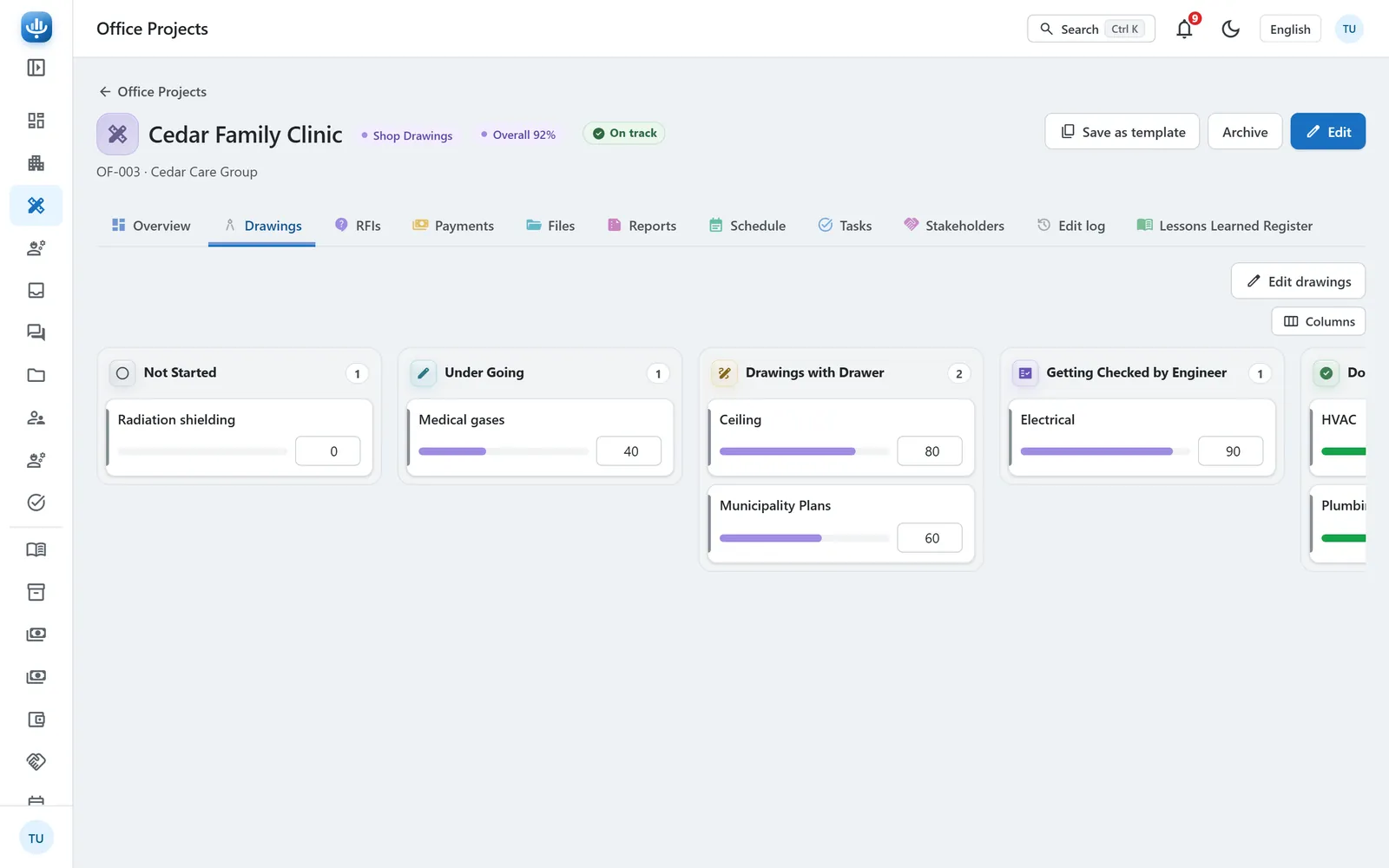
The drawings board of a project: each drawing in its column, from not started to done

Projects

  • Office projects and site projects, each with the tabs its side needs.
  • Your own design stages and weights. The design percentage follows the stages, office tasks and drawings.
  • A drawings board on each project, with columns you can add.
  • Each project's health: on track, at risk or delayed, with the reasons.
  • Start new projects from your own templates: stage, team, contracts and first tasks.
Time schedule

  • A timeline of each project: work items and contracts on site, design stages and office tasks in the office.
  • Rows with no dates are laid end to end from each type's usual length.
  • Type a date and the rows after it move with it.
  • See planned dates, actual dates or both.
  • Late rows stand out. Alerts follow only the dates you typed.

Reports

  • A Reports tab on each project with its site visits, meeting minutes and weekly reports.
  • Weekly reports kept as PDF files, one for each week, with a note.
  • A project overview: what needs review, and expected against actual progress.
  • Lists export to Excel in your language: projects, contracts, payments, RFIs, issues, tasks and tickets.

Lessons learned

  • A Lessons Learned Register on each project, at the office and on site.
  • Each lesson says what happened, what was learned and what to do next time.
  • Lessons sorted by category: design, procurement, construction, cost, schedule, quality, safety and more.
  • A Lesson Learned Log for the whole firm, with search and filters.
2 of 6

Site and execution

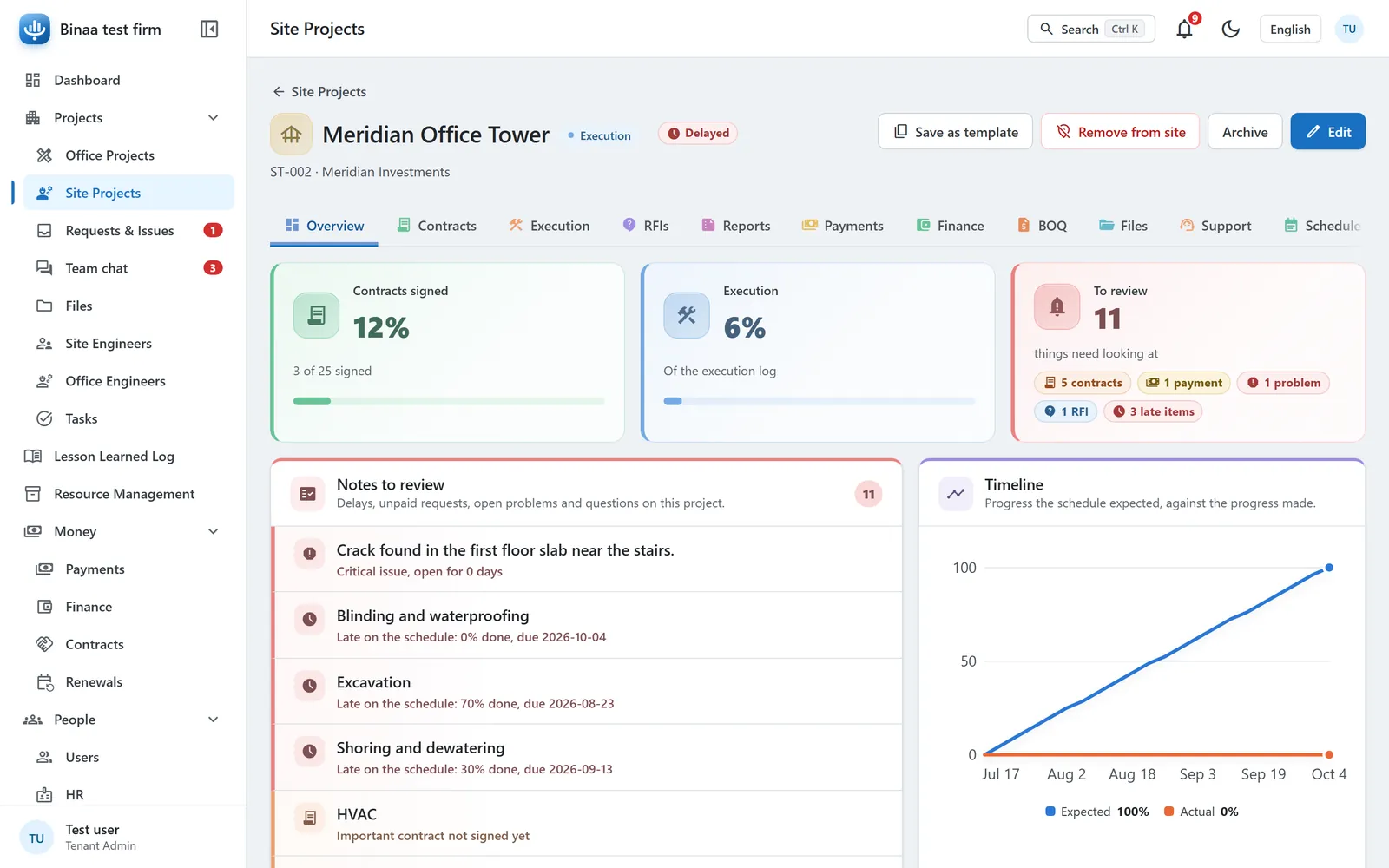
Site visits and the issues found on them, and an execution log of each work item: progress, contractor and dates.

A site project's overview: contracts signed, execution progress and what needs review
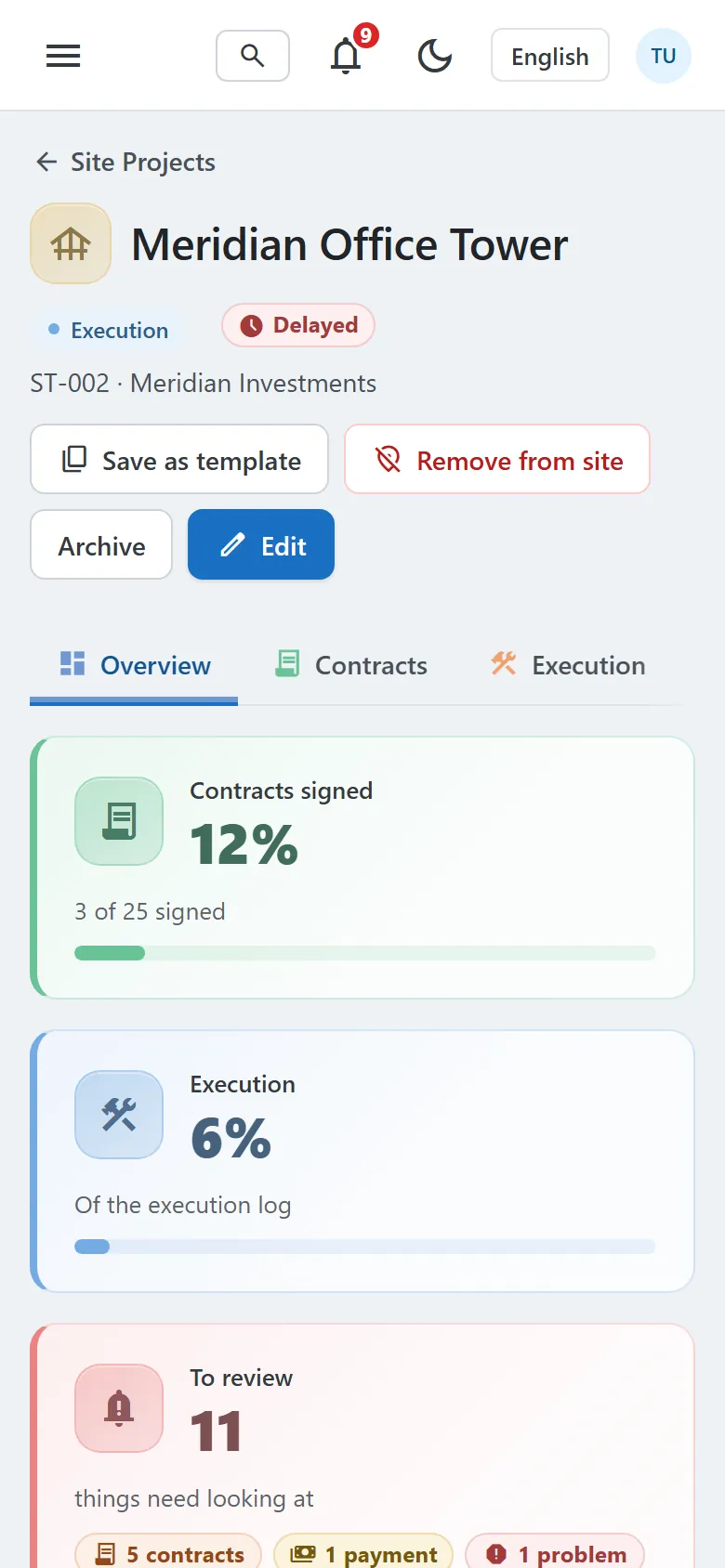
A project on a phone: contracts signed, execution progress and items to review

Site visits

  • Log each site visit: the date, who went and the notes.
  • Raise issues by severity, name who is responsible, and follow each one until it is solved.
  • Issues still open after 3 days are marked overdue.
  • Ask the office for a missing drawing and mark it received when it comes.
  • A daily site diary: weather, workers, equipment, work done, delays and up to 10 photos.

Execution log

  • Your own list of work categories and items, ready on every project.
  • Each item's percent, status, contractor and notes.
  • The project's progress is the average of its items.
  • Planned dates, and the actual start and end filled in as work moves.
  • Raise a site issue straight from an item.
3 of 6

Money

Contracts, payment requests, instalments and what the owner paid, in your currency and in theirs.

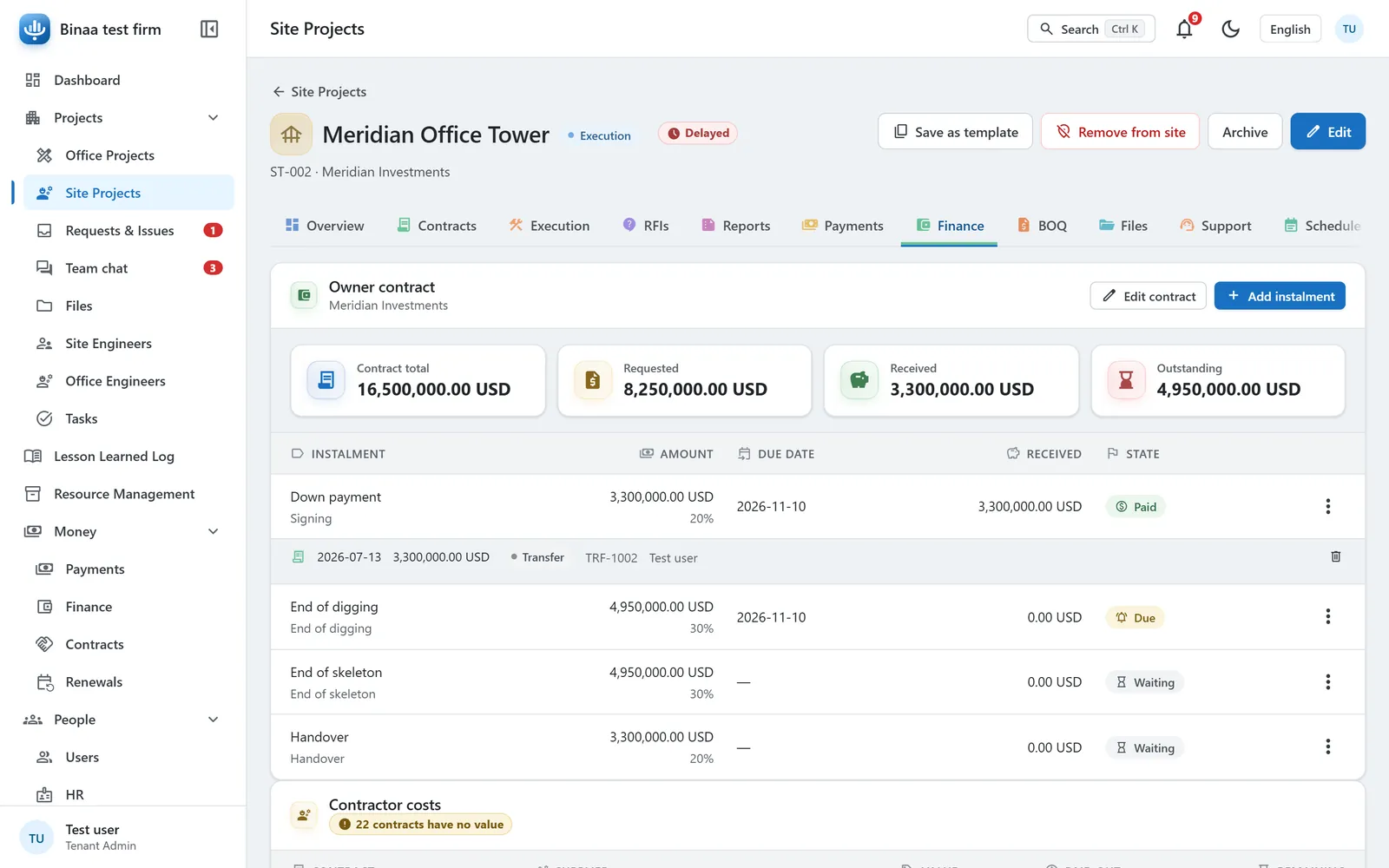
A project's owner contract: its instalments by milestone, what was requested and what was received

Contracts

  • A contract for each of your contract types on every project, from not signed to done.
  • One list of your contractors and suppliers.
  • Important contracts still unsigned during digging and skeleton show as alerts.
  • A bill of quantities for each project: import it from Excel and issue numbered revisions.
  • Variation orders with their cost and time impact, approved or rejected by a manager.

Payment requests

  • Requests from contractors and engineers, each with its amount, contract, due date and urgency.
  • Steps from quotation to payment: asked for, studied, sent to the owner, approved, paid.
  • A board where requests are dragged across the steps and your own columns.
  • Requests waiting too long for the owner are marked delayed.
  • Files can be attached, and a rejection tells the person who asked.

Finance

  • The owner contract of each project, split into instalments.
  • Instalments fall due by themselves: at signing, at the end of digging or skeleton, or at handover.
  • Record what the owner paid: cash, transfer, cheque or payment link.
  • Late instalments are flagged after your grace days, and the right people are told.
  • A contract in another currency keeps its own rate. Totals show the original amounts beside them.
4 of 6

Team

Tasks, meeting logs, team chat, HR and the firm's resources. Each person sees what their role allows.

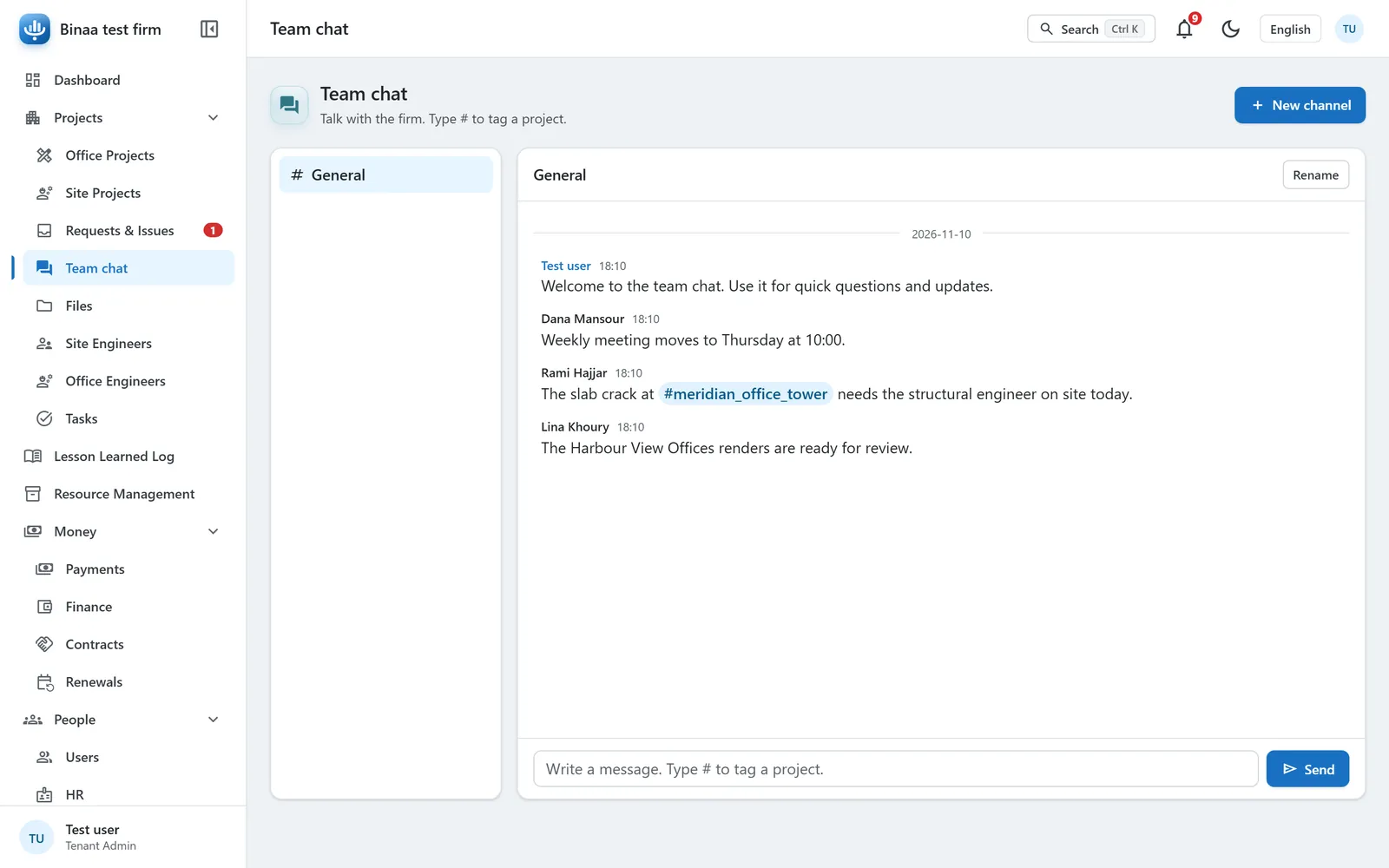
Team chat: the General channel, with a message that tags a project

Tasks

  • Tasks for a project or for the whole firm, each with an assignee, due date and priority.
  • Tabs for today, overdue, this week, later, no date and done.
  • A task board with your own columns.
  • A meeting's action item can become a task.

Meeting logs

  • Minutes of each meeting: date, place, attendees and notes.
  • Action items with an owner and a due date. The owner is told.
  • Tick action items off as they are done.
  • Weekly reports as PDF files on each project.

Team chat

  • Channels for the whole firm, starting with General.
  • Tag a project with # and it shows as a link to those who can open it.
  • Unread counts on every channel.
  • Managers add, rename and archive channels.

HR

  • A profile for each member of staff.
  • Leave requests with each person's balance, approved or rejected by HR.
  • Civil ID, passport and residency, with an alert 30 days before they run out.
  • Check in and out once a day, and an attendance sheet for HR.
  • Timesheets of hours by project, and an hours report.

Resources

  • WBS, OBS and resource breakdown for the firm and its projects.
  • A RACI matrix, with one Accountable for each item.
  • Assumption log, risk register, activity list and cost estimates.
  • Resource calendars with bookings and leave.
  • Suppliers with ratings from 1 to 5 and whether you would work with them again.
5 of 6

Documents and RFIs

Project files in one place, RFIs with their answers, and support tickets after the handover.

Project files

  • Project documents in your own categories.
  • Every upload of a document kept as a revision.
  • Mark documents for approval, approved or superseded.
  • Plan change requests from the site to the office, followed until done.
  • Files attached to RFIs, meetings and payment requests.

RFIs

  • Raise a question on a project, with how urgent it is.
  • Assign it to someone. They are told at once.
  • Answer, close and reopen. Whoever asked is told of the answer.
  • A board view with your own columns.
  • Overdue RFIs put the project at risk on the dashboard.

Support tickets

  • Problems the owner reports after the handover, numbered on each project.
  • Reported by your team, or by the owner's contact by name and phone.
  • New, in progress, waiting, resolved, closed: on a board.
  • Comments and up to 10 photos on each ticket.
  • Link a ticket to the project's warranty.
6 of 6

AI assistant and growth

Ask the AI assistant about your projects and files. Follow sales leads and send WhatsApp messages to owners.

AI assistant

  • Ask about a project file: PDF, Excel, Word, PowerPoint or text.
  • Ask about all the projects you can see.
  • It answers only from what your role may see.
  • Answers come in your own language.
  • Use Google Gemini, Anthropic Claude or OpenAI, with your firm's own key.

Leads

  • Leads from WhatsApp, Instagram, Facebook, referrals, walk-ins and your website.
  • Stages from new to won or lost, on a board.
  • The expected value of each lead and who follows it.
  • Turn a won lead into a project.

WhatsApp

  • Once your WhatsApp Business account and message template are approved, instalment reminders go to the owner on WhatsApp by themselves.
  • The first when an instalment falls due, then every few days while it is late.
  • Sent from your own WhatsApp Business number, with your approved message.
  • Each message sent is logged on its instalment.
In every bundle

Built into every firm's space

Whatever modules you turn on, these come with them.

Roles and permissions

Each person has a role. You choose what each role can see and do, money included.

Edit log

Every change to a project is kept: who changed what, and when.

Notifications

People are told when something is theirs: an issue, an RFI, an action item, a leave request.

Search everything

Find a project, contract, issue, file or task from any page with Ctrl K.

Four languages

Arabic right to left, English, French and Spanish. Each person picks their own.

Two-step login

A code sent by email after the password, for those who turn it on.

See it with your own projects

Start a 7-day trial for your firm, or look at the bundles and what each one holds.